Our game is taking shape! In the last chapter we updated the output.py file to make the paddle listen to the user, and now it's time to edit the ball. At this stage, it may be useful to outline the things that have to happen in our game.
In this chapter we will focus on the ball from our Breakout project. We will add collision behavior to the ball and make it bounce against the paddle
Whenever we discuss how to create a game-like environment, I always recommend students to create a diagram that outlines the type of interactions between the components that make the game.
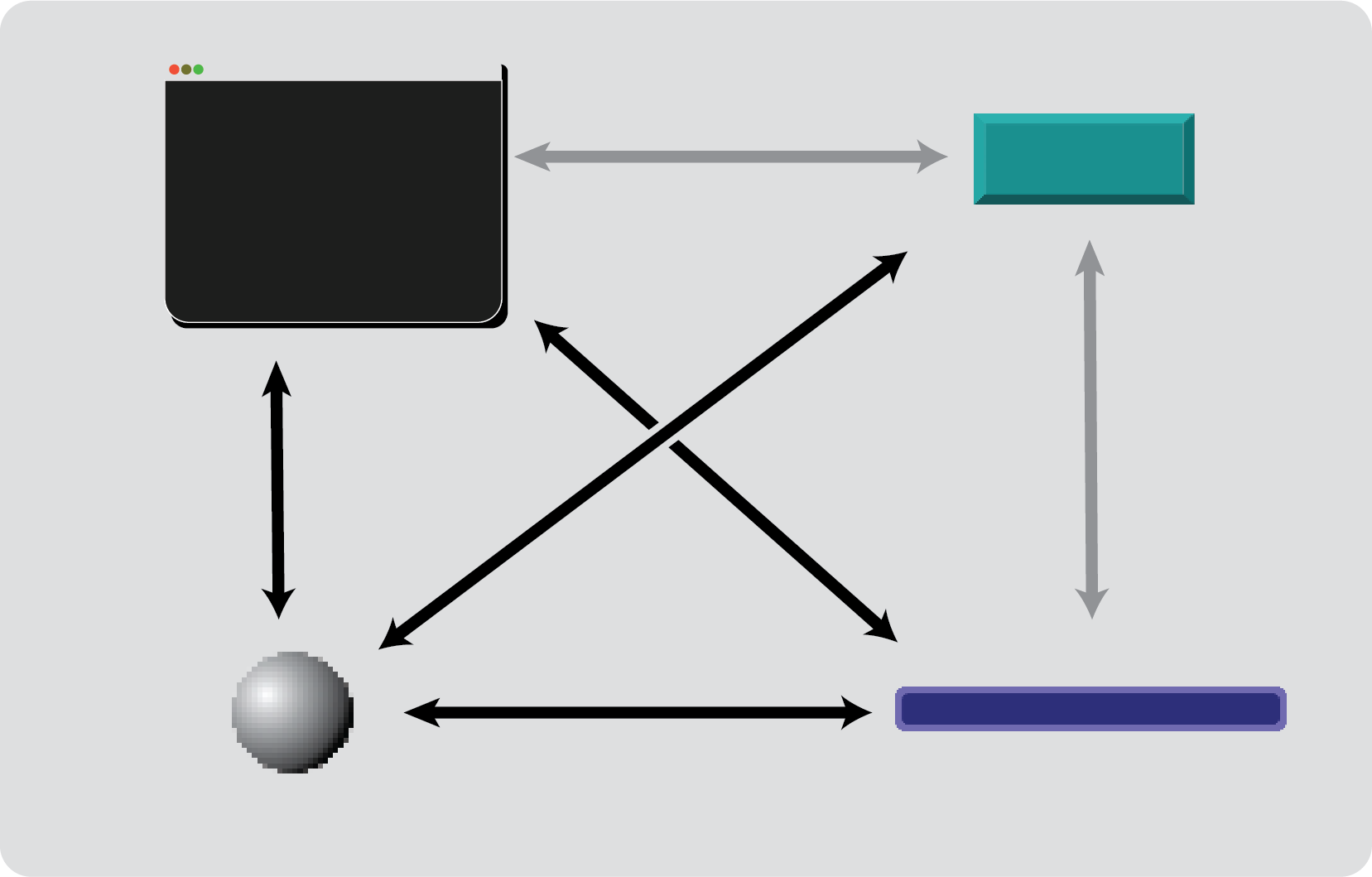
This is a good way to keep track of the complexity in our applications. While some arrows may not involve a lot of coding, some other are the heart of our applications. For this game, it seems we need algorithms for:
- interaction ball - paddle
- interaction ball - block
- interaction ball - screen
- interaction paddle - screen
It turns out the interaction paddle - screen was the focus of our previous chapter, and so we only have to model three interactions. In the last chapter we also said the update() function is the one that reflects the rules of our algorithm, so it makes sense to add some comments to our code before we get started:
            def update():
                for event in pygame.event.get():
                    if event.type == pygame.QUIT:
                        pygame.quit()
                    if event.type == pygame.KEYDOWN:
                        gameManager.paddle.userInput(event)
                    if event.type == pygame.KEYUP:
                        if event.key == pygame.K_LEFT or event.key == pygame.K_RIGHT:
                            gameManager.paddle.direction = [0,1,0]
                # Gameplay:
                # interaction paddle - screen
                gameManager.paddle.update()
                # interaction ball - paddle
                # interaction ball - screen
                # interaction ball - block
Wouldn't it be great if we already had functions for each of these interactions? In programming, we often work by layers. When we have a well defined step or action we often encapsulate it in its own tiny bubble, give it a name, and leave it for later. So let's make a wish for evey interaction:
                # Gameplay:
                # interaction paddle - screen
                gameManager.paddle.update()
                # interaction ball - paddle
                gameManager.ball.update_collision_paddle(gameManager.paddle)
                # interaction ball - screen
                gameManager.ball.update_collision_screen()
                # interaction ball - block
                gameManager.update_blocks()
Interaction ball - paddle
Create the function update_collision_paddle() as part of the Food child class:
            class Food(GameObject):
                def __init__(self, position, angle, object_type, img_path, scale_factor):
                    super().__init__(position, angle, "food", img_path, scale_factor)

                def update_collision_paddle(self,paddle):
                    if self.rect.colliderect(paddle):
                        self.dy = -abs(self.dy)
Here, the function receives the paddle (another instance of GameObject), and uses the hitbox (self.rect) to ask if any part of the ball is touching that object, by using the function colliderect(), which compares if two hitboxes touch each other. When the ball touches the paddle, the velocity of the ball changes, always becoming negative.
The reason for the negative value of the ball's vertical velocity has to do with how Pygame adds pixels, and rows of pixels, to the screen. The way it does it is by adding elements from top to bottom, from left to right. So, the first row with value 0 (programmers also count starting at 0) is the top edge of the screen. If we want the ball to go up then the velocity has to be negative.
Interaction ball - screen
Add now another function to the Food class, named update_collision_screen(). This action has to ask if the ball is:
- touching the RIGHT edge of the screen with value SCREEN[0] in x
- touching the BOTTOM edge of the screen with value SCREEN[1] in y
- touching the LEFT edge of the screen with value 0 in x
- toucing the UP edge of the screen with value 0 in y
            def update_collision_screen(self):
                # RIGHT
                if (self.x + self.image.get_width()//2) >= SCREEN[0]:
                    self.dx = -abs(self.dx)
                # BOTTOM
                elif (self.y + self.image.get_height()//2) >= SCREEN[1]:
                    self.dy = -abs(self.dy)
                # LEFT
                elif (self.x - self.image.get_width()//2) <= 0:
                    self.dx = abs(self.dx)
                # UP
                elif (self.y - self.image.get_height()//2) <= 0:
                    self.dy = abs(self.dy)
Updating the position of the ball
It's looking good! However, running the code at this stage doesn't move the ball because the only changes we have applied so far affect only the velocities, called dx and dy. We need to connect the speed to position somehow. Let's add a function update_position() to the class Food:
            def update_position(self):
                self.x += self.dx
                self.y += self.dy
We need to make sure our functions are being executed. For now, let's make sure they are included in the main update() function:
        def update():
            for event in pygame.event.get():
                if event.type == pygame.QUIT:
                    pygame.quit()
                if event.type == pygame.KEYDOWN:
                    gameManager.paddle.userInput(event)
                if event.type == pygame.KEYUP:
                    if event.key == pygame.K_LEFT or event.key == pygame.K_RIGHT:
                        gameManager.paddle.direction = [0,1,0]
            # Game play:
            # interaction paddle - screen
            gameManager.paddle.update()
            # interaction ball - paddle
            gameManager.ball.update_collision_paddle(gameManager.paddle)
            # interaction ball - screen
            gameManager.ball.update_collision_screen()
            gameManager.ball.update_position()
            # interaction ball - block
The beauty of refactoring
Have you noticed that all of the functions we recently wrote involve our ball? Moreover, they all start with the name "update_something". Why not putting them all inside the ball? When you have a set of code snippets that naturally belong together, it's time to encapsulate them into one big function.
Add a new function update() to the Food class. Then, take all of the elements involving the ball from the main update(), and place them inside your newly created function:
        class Food(GameObject):
            ...

            def update(self,paddle):
                # interaction ball - paddle
                self.update_collision_paddle(paddle)
                # interaction ball - screen
                self.update_collision_screen()
                # move the ball
                self.update_position()
And now, the ball will be in charge of executing all of its actions. We just need to ask for the ball.update() in the main function update():
        def update():
            ...
            # Game play:
            # interaction paddle - screen
            gameManager.paddle.update()
            # update the ball
            gameManager.ball.update(gameManager.paddle)
            # interaction ball - block
If you wish, you can change the values of dx and dy, located in the def __init__ function of the GameObject class, from 0.1 to higher values to increase the speed of the ball.
Interaction ball - block(s)
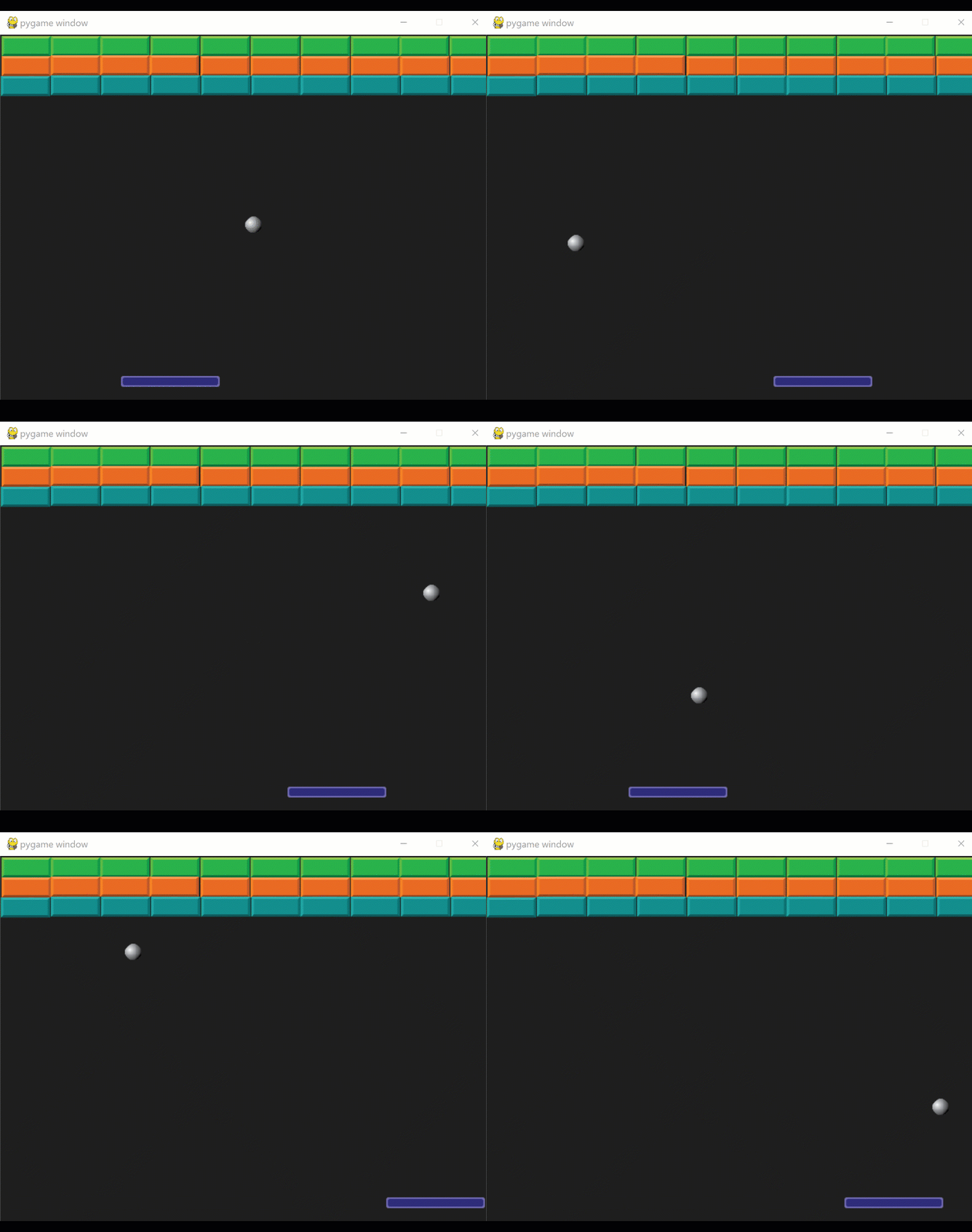
There seems to be only one more step to make our game playable, and it involves bouncing the ball against the blocks, and destroying the blocks. We can take two approaches, by either adding a new function that passes the ball to a collection of blocks (the list gameManager.walls), or by passing a collection of blocks to a new function inside the ball. We will use the first approach because:
- it involves passing a ball to a function instead of a collection of objects
- gives us the opportunity to create a helper function directly inside the gameManager
In the main update() function, we will create a new function called gameManager.update_blocks().
    def update():
        for event in pygame.event.get():
            if event.type == pygame.QUIT:
                pygame.quit()
            if event.type == pygame.KEYDOWN:
                gameManager.paddle.userInput(event)
            if event.type == pygame.KEYUP:
                if event.key == pygame.K_LEFT or event.key == pygame.K_RIGHT:
                    gameManager.paddle.direction = [0,1,0]
        # Game play:
        # interaction paddle - screen
        gameManager.paddle.update()
        # update the ball
        gameManager.ball.update(gameManager.paddle)
        # interaction ball - block
        gameManager.update_blocks()
Then, inside the GameManager class, we create our function update_blocks():
    def update_blocks(self):
        for block in self.walls:
            if block.rect.colliderect(self.ball):
                # Calculate overlap distances
                overlap_left = self.ball.rect.center[0] - block.rect.left
                overlap_right = block.rect.right - self.ball.rect.center[0]
                overlap_up = self.ball.rect.center[1] - block.rect.top
                overlap_bottom = block.rect.bottom - self.ball.rect.center[1]
                edge_distance = min (overlap_right,overlap_bottom,overlap_left,overlap_up)
                # RIGHT BOUNCE
                if edge_distance == overlap_right:
                    self.ball.dx = abs(self.ball.dx)
                # BOTTOM BOUNCE
                if edge_distance == overlap_bottom:
                    self.ball.dy = abs(self.ball.dy)
                # LEFT BOUNCE
                if edge_distance == overlap_left:
                    self.ball.dx = -abs(self.ball.dx)
                # UP BOUNCE
                if edge_distance == overlap_up:
                    self.ball.dx = -abs(self.ball.dx)

                self.walls.remove(block)
Yowza! The above code snippet definitely requires a more detailed explanation. The ball should bounce differently depending on the edge hit by the ball. So first we calculate the distance from the center of the ball to each of the block's edges, and apply the right change in velocity depending on which one is closer. The edges of a block are integers, not coordinates x and y. For the right and left edges, we get a value in x of those edges, and a value in y for the top and bottom edges:
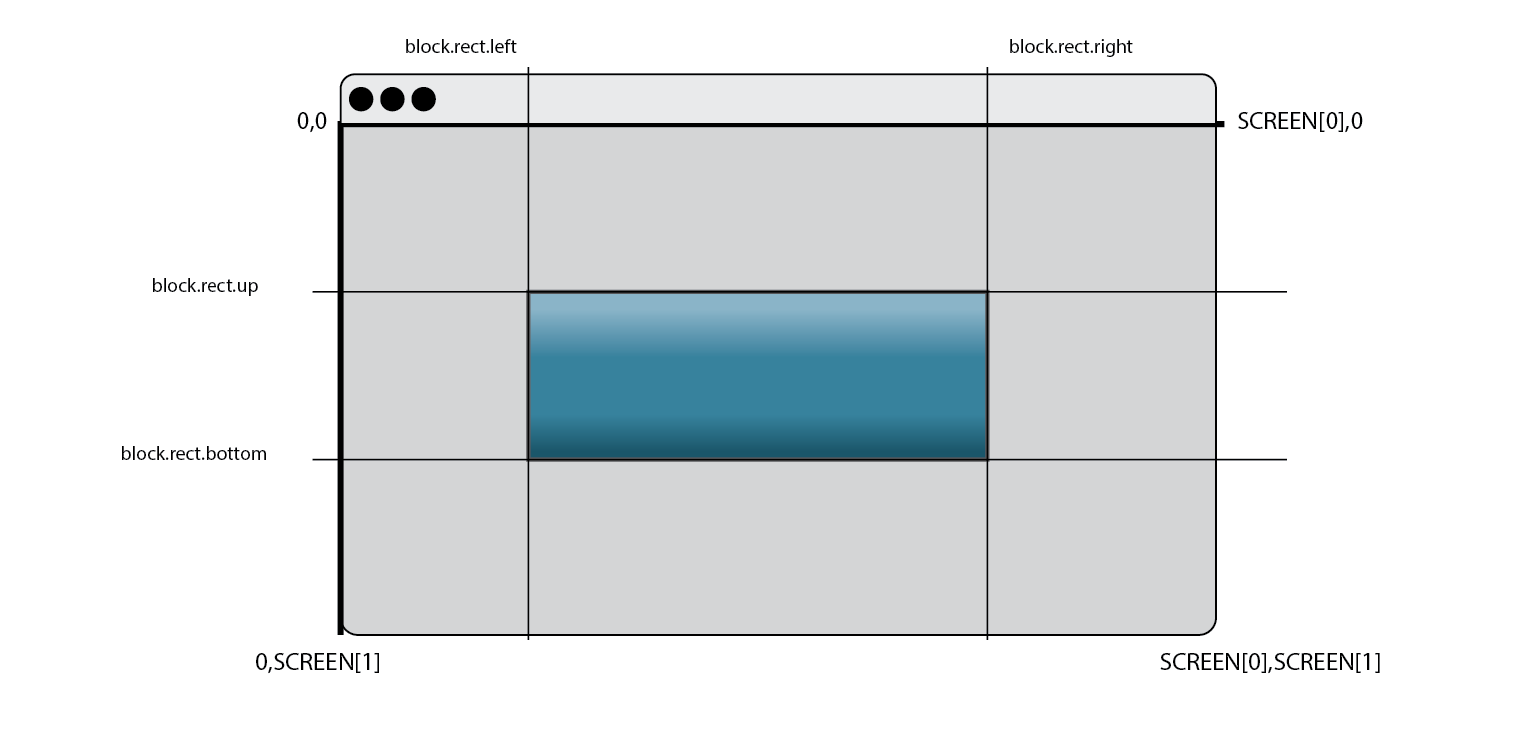
What makes the code look complicated may be the squared brackets "[]" in the first bit, and the fact we're using a coordinate system. The brackets represent the x (with [0]) and y (with [1]) elements from the ball's current position. We use them to compare the x of the ball against the x of the block for the right and left edge, and then compare the y of the ball against the y of the block for the bottom and up edges.
After all of that effort, we can rejoice with a playable version of our game!